

Google has just quietly rolled out a powerful feature on Gemini: 👉 Allows you to build your own AI Workflow, functioning similarly to n8n / Opal, 👉 Can be shared with others to use, 👉 No coding required – no cost – completely free.
And the surprising part: the setup takes less than 5 minutes.
🔹 STEP 1: Access Gemini & Create a New Gem

- Go to: 👉 https://gemini.google.com/
- Select Gem manager
- Select New Gem
📌 Important Note: This “Gem” section is part of Labs and is completely different from the old Gems.
- Old Gem: Just a single Agent.
- New Gem (Labs): An AI Workflow consisting of multiple Agents combined to handle complex tasks.
🔹 STEP 2: Generate the AI Workflow
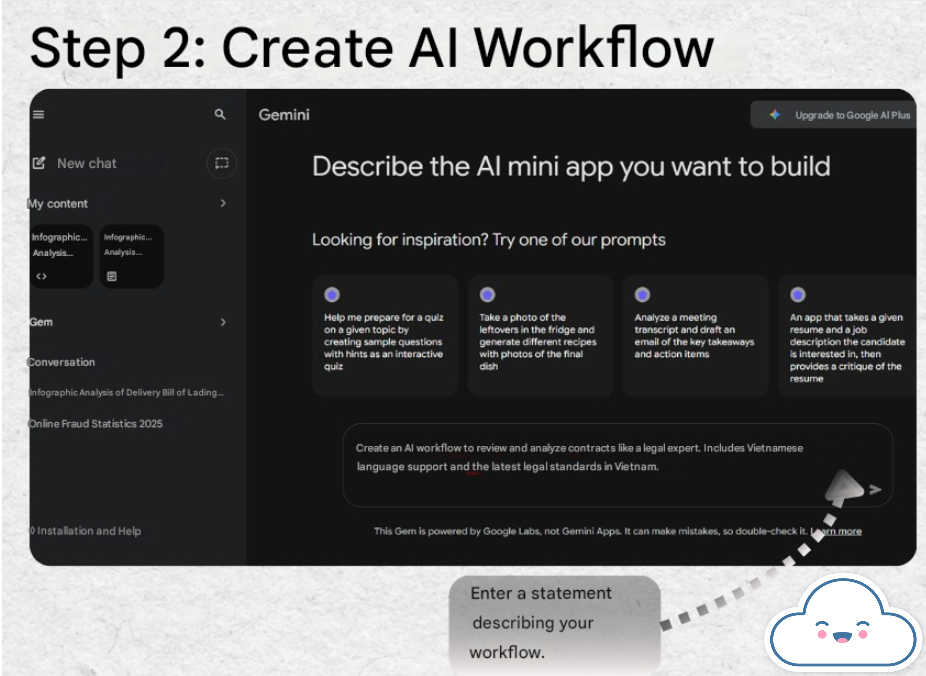
- Enter a description of the workflow you want Gemini to build.
- Press Enter or the → icon to start creating.
⚠️ Note:
- Since the AI Workflow feature is new, Gemini will prioritize creating it in English.
- If you want the Workflow to run in a specific language (e.g., Vietnamese), state this clearly in your prompt right from the start.
🔹 STEP 3: Use the AI Workflow Once created, you will see:
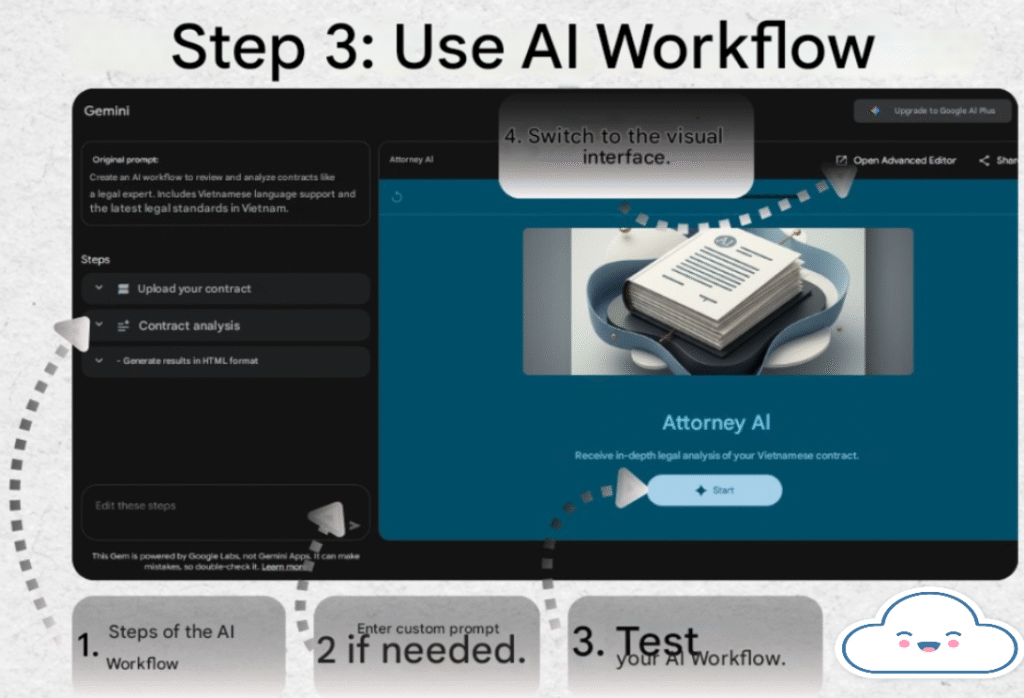
- The Workflow steps displayed on the left.
- Example: A Workflow might consist of 3–4 different processing steps.
You can:
- Enter additional commands to adjust the Workflow.
- Press Start to test run the Workflow.
- Select Open Advanced Editor to switch to the visual editing interface.
📌 Note: The following steps require the Advanced Editor for full functionality, so make sure you open this section.
🔹 STEP 4: Customize & Optimize the AI Workflow In the Advanced Editor, you have full control:
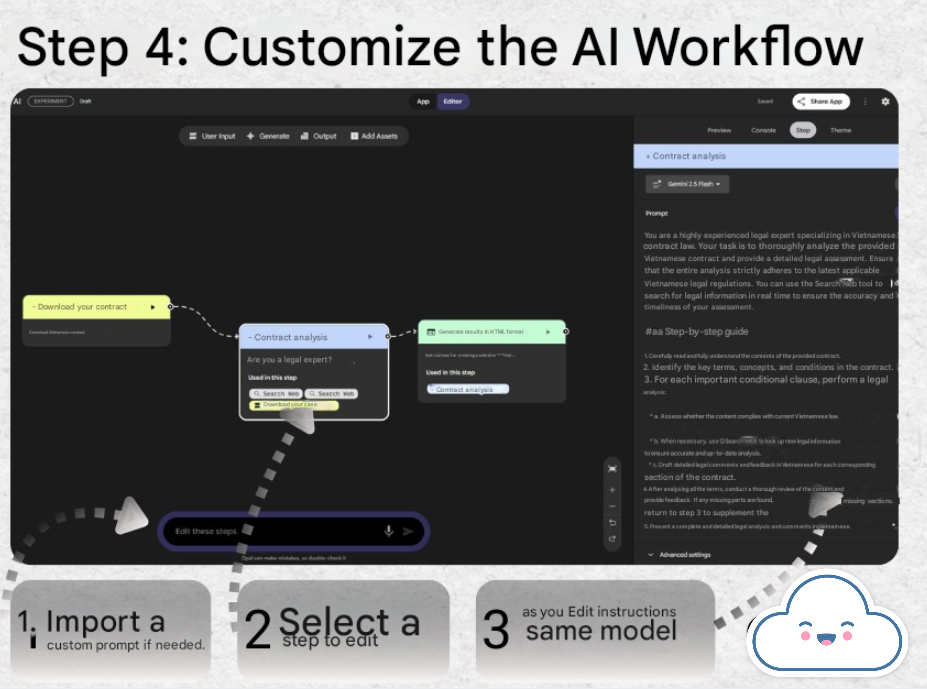
🔧 Method 1: Use Natural Language
- Type your request for the AI to auto-edit the Workflow.
- Suitable for those who don’t want to edit manually.
🔧 Method 2: Edit Specific Steps
- Click on each step in the Workflow.
- Optimize:
- Prompt
- System Prompt
- AI Model used
📌 Quick Explanation:
- System Prompt: Controls the main behavior/role of the Agent.
- Prompt: The command the user inputs when running the workflow.
📌 About Models: You can choose from various models such as:
- Gemini
- Imagen
- Veo
- Nano Banana → Depends on the purpose: text, image, video, or lightweight processing.
🔹 STEP 5: Share Your AI Workflow
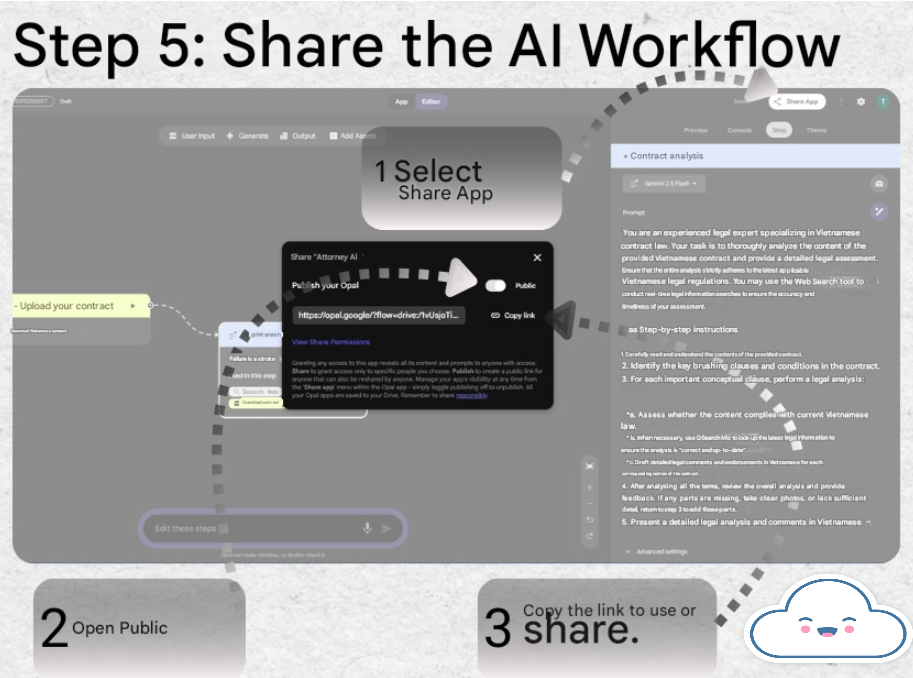
- Select Share App.
- Turn on Public.
- Copy the link to use or share with others.
🎯 Others can use your Workflow just like a standalone AI application.
🔎 Quick Summary If you knew about Google’s Opal previously, then: 👉 The AI Workflow in Gemini is essentially Opal being gradually integrated into Gemini.
Although currently:
- Not as flexible as n8n.
- Still has some limitations.
But: ✔️ It solves many cumbersome processes. ✔️ It transforms Gemini from a chatbot into a true automation tool.
🔥 And even more interesting: Google is quietly developing another AI Workflow tool that is even more powerful and specialized.